Logitech Squeezebox Touch & Ubuntu 12.04 Set up


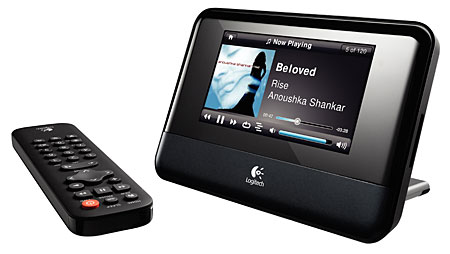
The Logitech Squeezebox Touch is an excellent, touch-screen, networked streaming network music player that features:
- a 11cm colour touch screen
- 24-bit DAC
- 802.11g Wi-Fi (WPA-2ES, WPA Personal and 64/128 bit WEP)
- 10/100Mbps Ethernet
- RCA Analgoue out
- Digital SP/DIF out
- Digital Coax out
- Supports MP3, FLAC, WAV, AIFF, WMA, Ogg Vorbis, HE-AACv2, HD-AAC, Apple Lossless, WMA Lossless, APE, MPC and WavPack (via transcoding).
Setting it up under Ubuntu 12.04 wasn't as simple as expected mainly since the wiki for Debian/Ubuntu seems to be out of date.
Here's how I got on...


Linux (Ubuntu) make an ISO image of a CD or DVD in one step


Two frequent recommendations made online for creating ISO images are to use dd or cat e.g. For example:

dd if=/dev/cdrom of=cdimage.iso
OR
cat /dev/cdrom > cdimage.iso

Neither are appropriate to create an image of CD or DVD.
  1. They provide no error checking and require a hash checksum such as MD5 or SHA1 to verify the image created is true to the original media; and
  2. Neither dd or cat lock the underlying files so there's a risk they could change whilst the image is being created.

Use readom...

Ubuntu: 12.04 Precise Pangolin Where are print screen / screenshots saved? missing dialog prompt?

Previously under Ubuntu 11.10 & Gnome when I pressed print screen 'PrtSc' on my keyboard to take a screenshot, it worked It presented a prompt and asked where to save the screenshot. 


Now I'm using Ubuntu 12.04 still with Gnome, hitting PrtSc makes the  screen flash as if a screenshot has been taken but I get no save prompt or dialog. The screenshots don't appear to save to my desktop (where they previously had) whilst using Unity I do get a print screen prompt. Odd.


Q. Where has the print screen prompt gone and more importantly where are my screenshots?...

Raspberry Pi: Virtualise RPi Debian Squeeze image


The Raspberry Pi is an ultra-low-cost credit-card sized Linux computer which was conceived with the primary goal of teaching computer programming to children. It was developed by the Raspberry Pi Foundation, which is a UK registered charity. The foundation exists to promote the study of computer science and related topics, especially at school level, and to put the fun back into learning computing. Demand for the Raspberry Pi has been incredible due to the huge interest there's a freeze and backlog of orders. In the mean time here's how you can play and get up to speed with the Raspberry Pi Debian distro virtually whilst you wait for your Raspberry Pi to arrive.

Ubuntu + Solid State Drive (SSD): managing or disabling the swap space / page file


There are mixed views on using SSDs for page files / swap space. A frequent view encountered is to avoid having a page file or swap space on an SSD to minimise R/W activity, since FLASH chips have a limited lifespan. Wear levelling helps manage the SSD life but eventually the SSD will degrade and to prolong life paging operations should be avoided. 

An increasingly popular contrasting view is that most modern SSDs will become outdated before they die, therefore worrying about paging to an SSD shouldn't be a priority since the SSD will likely be outdated with cheaper and larger alternatives available before the SSD dies.

Read on for a couple of options for managing an SSD within Ubuntu...

Ubuntu: XBMC with AirPlay enabled

As of XBMC v11 (Eden), XBMC supports being an AirPlay target, allowing any device/platform that can run XBMC to receive AirPlay content from an iOS or iTunes source (as well as other 3rd party AirPlay sources for desktops and even Android).
Here's how...

Linux (Ubuntu): Adobe Flash 11.2 problem experiencing blue tint / hue


Issue: Flash player video has a blue tint / hue under flash v11.2. This is caused by a bug in the new Flash version that Adobe refuses to fix. There also is a bug report on Launchpad that discusses this (LP: #967091). The bug only appears when you use the NVidia binary drivers and have libvdpau installed. A quick fix is adding some extra settings to the Flash configuration...

Ubuntu: Record 'What you hear' on Ubuntu with Audacity

How do I record what I hear in Ubuntu? here's how...
Audacity is a free, easy-to-use audio editor and recorder for Windows, Mac OS X, GNU/Linux and other operating systems. You can use Audacity to:
  • Record live audio.
  • Convert tapes and records into digital recordings or CDs.
  • Edit Ogg Vorbis, MP3, WAV or AIFF sound files.
  • Cut, copy, splice or mix sounds together.
  • Change the speed or pitch of a recording.
PulseAudio Volume Control (pavucontrol) is a simple mixer for the PulseAudio sound server. In contrast to classic mixer tools this one allows you to control both the volume of hardware devices and of each playback stream separately. 


Here's how to use both to record what you hear from your PC...

Gnome GUI context menu hash checker (md5, sha)

A Hash Checker for Linux/Unix is small and useful tool for checking your downloads and other files with MD5, SHA1 and/or SHA256 hash. This script adds the ability to check the hash of files simply from the context menu in Gnome shell. This script makes use of Zenity, a tool that allows you to display Gtk+ dialog boxes from the command line and through shell scripts.


Source: http://gnome-look.org/content/show.php?action=content&content=129309

Customise Ubuntu 12.04 and Gnome 3.x with Gnome Extensions


GNOME Shell extensions are small pieces of code written by third party developers that modify the way GNOME works. (If you are familiar with Chrome Extensions or Firefox Addons, GNOME Shell extensions are similar to them.) You can find and install GNOME Shell extensions using https://extensions.gnome.org/.


Support for installing extensions from the website was first added in GNOME 3.2, so if you are using GNOME 3.0, you'll need to upgrade to a newer Linux distribution. You can check what version of GNOME is installed on your system using the "System Information" panel of "System Settings". If you are using GNOME 3.2 or newer and installation still doesn't work, check to make sure that the "GNOME Shell Integration" plugin is installed and enabled in your browser preferences. Read on for my favourite extensions...


SSH & Screen: Cheat sheet & tips for use with the command line (CLI)

My cheat sheet for SSH and screen...

SSH is a network protocol for secure data communication, remote shell services or command execution and other secure network services between two networked computers.

Screen is an application that can be used to run multiple virtual terminal consoles. It allows a user to access multiple separate terminal sessions inside a single terminal window or remote (SSH) terminal session. 

Configure Ubuntu 11.10 Oneiric Ocelot & Gnome 3 to improve user experience


This is a collation of tips and tweaks I've gathered along the way to configure Ubuntu 11.10 Oneiric Ocelot and Gnome 3 to improve my experience:

Wireless on BackTrack5 and Samsung NC10


How to connect to a WPA encrypted access point in BackTrack5 using wpa_supplicant and a Samsung NC10. Read on...

Ubuntu: Sound-juicer enable missing MP3 codec profile

Sound-juicer on Ubuntu 10.04 does not have lame for gstreamer included as standard hence the MP3 profile is not available out of the box. The required gstreamer lame mp3 plug in does not exist as a dependency for sound-juicer or in the standard synaptic repository. To enable the MP3 profile in sound-juicer, the underlying gstreamer lame mp3 plug is required. To install the gstreamer lame mp3 plug in from the default synaptic repository use:

sudo apt-get install gstreamer0.10-plugins-ugly-multiverse

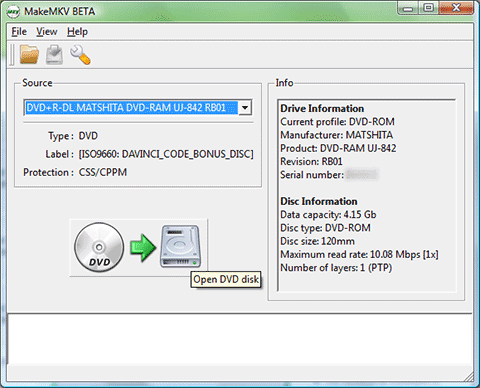
Ubuntu: Install makemkv and update simply

MakeMKV is software to convert blu-ray and dvd to mkv, whilst it is in development it is currently free as shareware for Linux. As a consequence it updates every other month and you have to install and update it manually. You will occasionally need grab a new licence key for the shareware version which is avaiable from the MakeMKV forums. I started to write my own script to download, install and keep up to date MakeMKV. However, after getting my own script to work I found this far more elegant solution that I wanted to share. All kudos to Jeff Bower at ebower.com...